Language · English
BLEACH MIRRORS HIGH / ACCOUNT TRANSFER

BLEACH Mirrors High Account Transfer: iOS vs Android (2026)

Link your BLEACH Mirrors High account before a transfer.

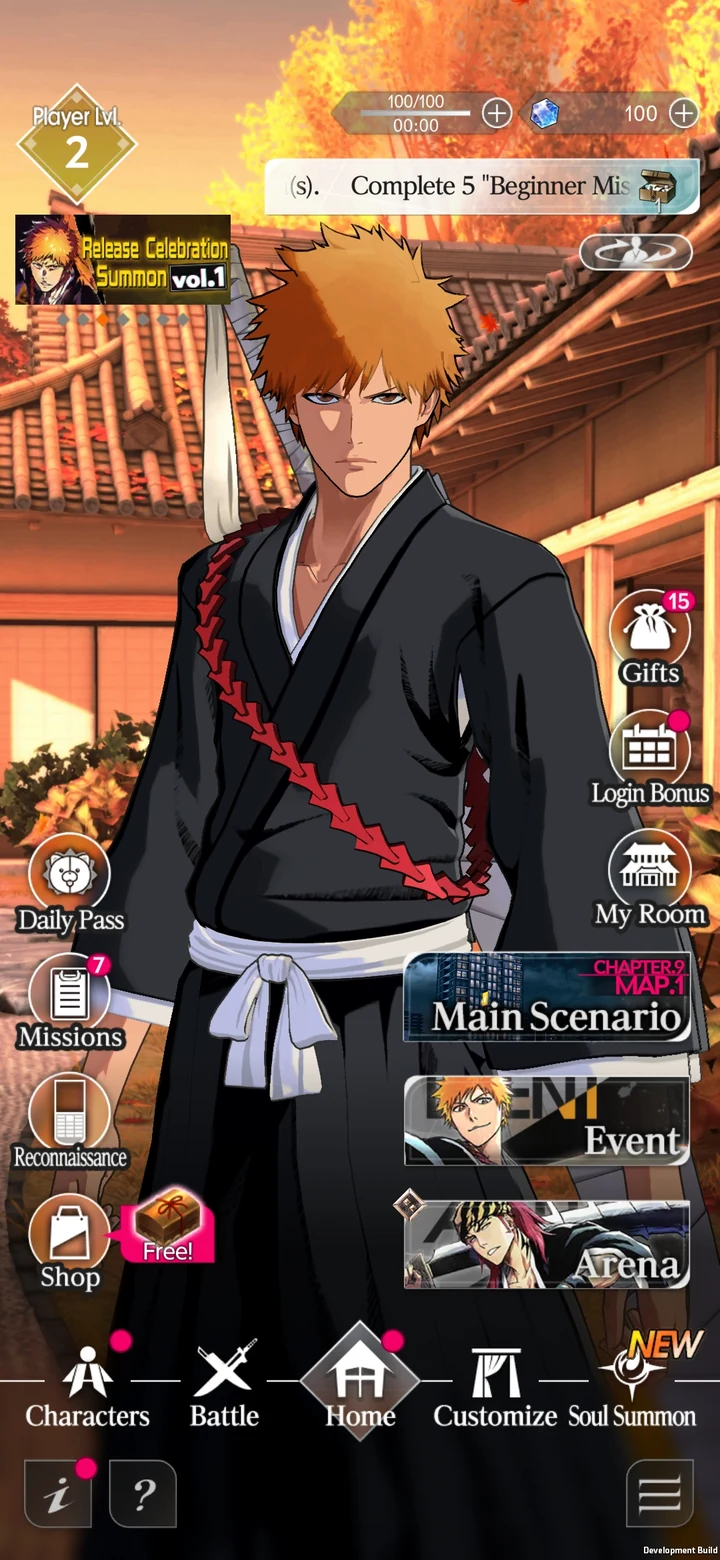
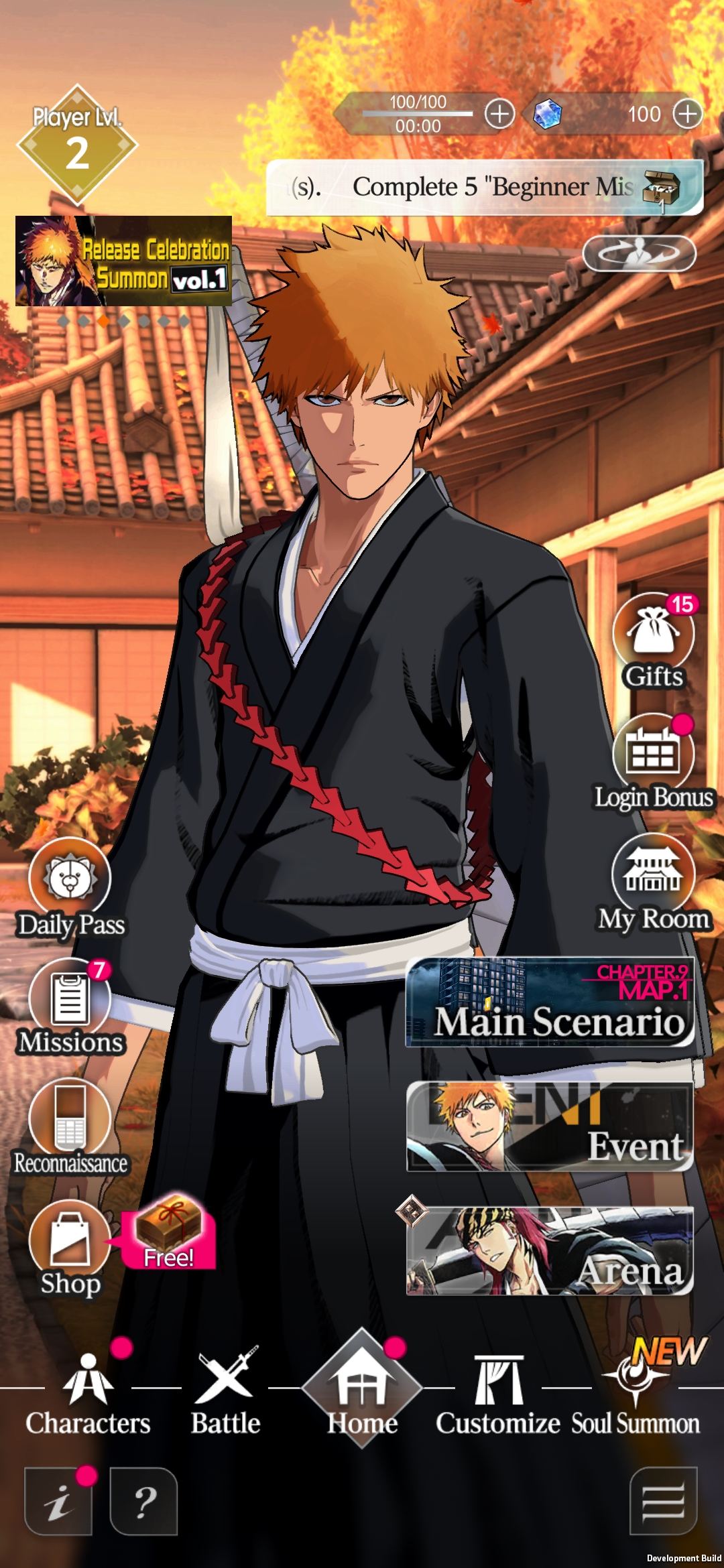
Official development home-screen preview showing separate Main Scenario, Event and Arena entries
Start on your original device
Publisher development preview; the menu panel is not expanded. Inspect the controls below ↓
Free guideNo sign-up to read this guideOfficial sources

BLEACH Mirrors High account transfer has 2 stages: link the original save, then receive it on the new device. Choose the route below before moving your account.

Same-OS and cross-OS account transfer: choose your supported route
Device moveOfficial transfer methodBefore you continue
Android → Android

Bandai Namco ID or Google Play Games can be set up from the original device’s Home menu.

Android transfer setup ↗

Check that the linked service holds the save you intend to keep. Use that same method on the receiving device.

iOS → iOS

The iOS setup FAQ offers Bandai Namco ID from Home → Link Account.

iOS transfer setup ↗

Have access to the linked Bandai Namco ID before moving. Game Center support is a separate question, covered below.

Android ↔ iOS

Use Bandai Namco ID. Google Play Games cannot transfer a save between different operating systems.

Cross-OS method restriction ↗

Owned Mirror Gems and subscription effects are lost when transferring between OS types; the official FAQ says they are not redistributed.

Cross-OS loss warning ↗
5 official source checks

Official FAQ text checked November 1, 2026. Game Center guidance explicitly states October 28. The publisher Home image is marked Development Build. No account link, transfer, deletion or gameplay test was performed by this guide.

CheckWhat the cited source supportsSource
Original Android deviceFAQ9263 provides the Home-menu account-linking procedure and distinguishes Bandai Namco ID from Android-only Google Play Games transfer.Android setup FAQ
Original iOS deviceFAQ9262 provides the iOS Bandai Namco ID setup route. It is a separate platform FAQ, not an assumed Android menu.iOS setup FAQ
Receiving deviceFAQ9268 specifies the Title-menu receiving procedure, identity checks and the restriction on playing the same save on the original device afterward.New-device transfer FAQ
Different operating systemsFAQ9264 explicitly warns of losing owned Mirror Gems and subscription effects, without redistribution.Cross-OS transfer FAQ
Before uninstallingFAQ9266 says to set up or confirm transfer before deleting the app; uninstalling removes login data and an unlinked player starts as a new user.Official uninstall FAQ
Are Home → Link Account and Title → User Data Transfer Setup the same step?

No. Link the save on the original device from Home. On the receiving device, use User Data Transfer Setup from the Title screen and choose the method you already linked.

Check the official source ↗

What should I check immediately after transferring?

Confirm the User ID, Player Name and Player Lvl match your intended save before continuing. The official receiving FAQ names all three fields.

Check the official source ↗

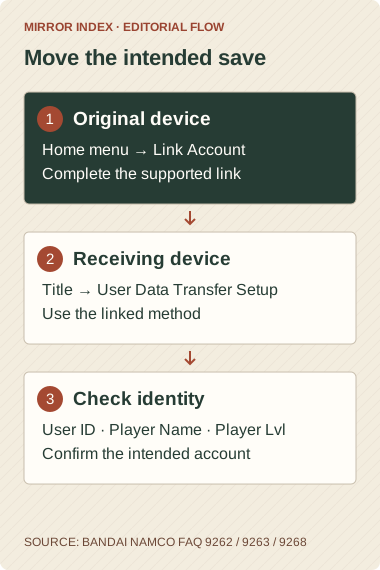
Account transfer flow from linking the original save to receiving and checking its identity
Original editorial flow from the official setup and receiving FAQs; this is not a screenshot or an account-transfer tool.

Set up the save on your original device

Keep access to your existing game until its transfer setup is confirmed. Open the bottom-right three-line menu on Home, select Link Account, choose the supported method and complete its instructions. The Android FAQ offers Bandai Namco ID or Google Play Games; the iOS FAQ offers Bandai Namco ID.

The publisher’s Home image identifies that first menu location. It is a development preview, not a picture of the expanded Link Account panel or the receiving device’s Title screen.

On Android, do not assume the system account has selected your intended save. The automatic-link FAQ says only one linked set of game data is eligible per Google Play account and describes explicitly setting the current save as the target. Keep service-login information privately; this guide requires no sign-in and does not collect account passwords.

Receive the account on your new device

  1. Install the release app through the official store routes.
  2. At the Title screen, open the bottom-right three-line menu and select User Data Transfer Setup.
  3. Select the method linked on your original device and tap OK. Authenticate with that linked service through its official flow.
  4. After completion, compare your User ID, Player Name and Player Lvl with the account you meant to transfer.

These are the official receiving instructions, rather than actions performed by this website. Use a stable connection. The FAQ does not guarantee PC backups or other transfer methods, and says the same save can no longer be played on the original device after the move.

What changes when moving between Android and iOS?

Make the OS decision before transferring. The cross-OS FAQ warns that any owned Mirror Gems and the effects of subscriptions will be lost, with no redistribution. It does not limit that warning to paid Gems or describe the loss as temporary. Google Play Games is not a cross-OS route; both platforms support Bandai Namco ID.

For iOS, the Game Center FAQ specifically says that transfer setup through Game Center is unavailable as of October 28, 2026. A Game Center login therefore should not be treated as proof of a linked game save under that published guidance.

If the intended save does not appear

For an Android automatic restore that does not occur, the official troubleshooting FAQ lists two checks: whether Google Play Games is installed and set up, and whether it is signed into the account linked to your game data. Check those before trying another save selection. In the specific wrong-selection case, Bandai Namco says the unselected data cannot be restored, including by support.

If you forgot the linked Bandai Namco ID, the login-information FAQ says its account/password cannot be checked from within the game and directs you to Bandai Namco ID Help. Do not post credentials publicly or send them to this site.

If the old device is unavailable or no transfer method was set up, use the appropriate official iOS Support Form or Android Support Form for your situation. The reviewed guidance does not promise recovery of an unlinked save. For login data lost by uninstalling, the uninstall FAQ says support generally cannot restore it.

Transfer, unlinking and account deletion are different

A move preserves the linked save; unlinking removes a transfer method. The unlink FAQ warns that the removed method can no longer be used for transfer. It is not a required migration step.

Do not use Delete User Data or Account Deletion to move an account. The reroll guide addresses starting over. Account Deletion permanently removes server-side game data, and does not itself stop subscription renewal. Before reinstalling anything, confirm your transfer setup and access to its linked service.

BLEACH Mirrors High Account Transfer: iOS vs Android (2026) FAQ

How do I transfer a BLEACH Mirrors High account to a new phone?

First link the original save through Home → Link Account. On the new device, use Title → User Data Transfer Setup, select the linked method and confirm the User ID, Player Name and Player Lvl after completion.

Can I transfer between Android and iOS?

The official guidance supports a pre-linked transfer, using Bandai Namco ID rather than Google Play Games for a different OS. Owned Mirror Gems and subscription effects are lost and are not redistributed.

Can I use Game Center for the iOS transfer?

The official FAQ says that Game Center transfer setup is unavailable as of October 28, 2026. The reviewed iOS setup instructions use Bandai Namco ID.

Can I keep playing the same save on both phones?

The receiving FAQ says that after transferring to a new device, you can no longer play the same save on the original device. This guide does not promise simultaneous use.

Why did Google Play Games not restore my intended account?

The official FAQ lists a missing or unconfigured Play Games app and signing into an account different from the linked one as possible causes. Check the intended account before choosing a save; the wrong-selection FAQ says unselected data cannot be restored.

Is reinstalling or deleting the account a transfer method?

No. Uninstalling clears login data, so confirm transfer setup first. Account Deletion permanently removes server-side game data and does not itself cancel a subscription. Neither action substitutes for receiving a linked save.

Mirror Index Editorial Team · Updated November 1, 2026 · Sources & editorial method ↗